Official Manual · First Connection
Shadowrocket Setup Guide
Add an existing configuration → Choose Global Routing → Connect and verify
For iPhone and iPad. First, establish a connection you can verify; then adjust rules, On Demand, and other settings. Official App Store screenshots illustrate where to find controls; the current app interface may differ.
01 · Add Server: Add or Import
First, identify what information you have. A server address, port, and authentication details can be entered manually. Use Subscribe for an existing subscription link, or Scan QR Code for a supported configuration QR code. You only need to use the method that matches your information. Subscription links may contain access credentials, so don't post the full link publicly or share it in a public discussion.
Enter Server Details Manually
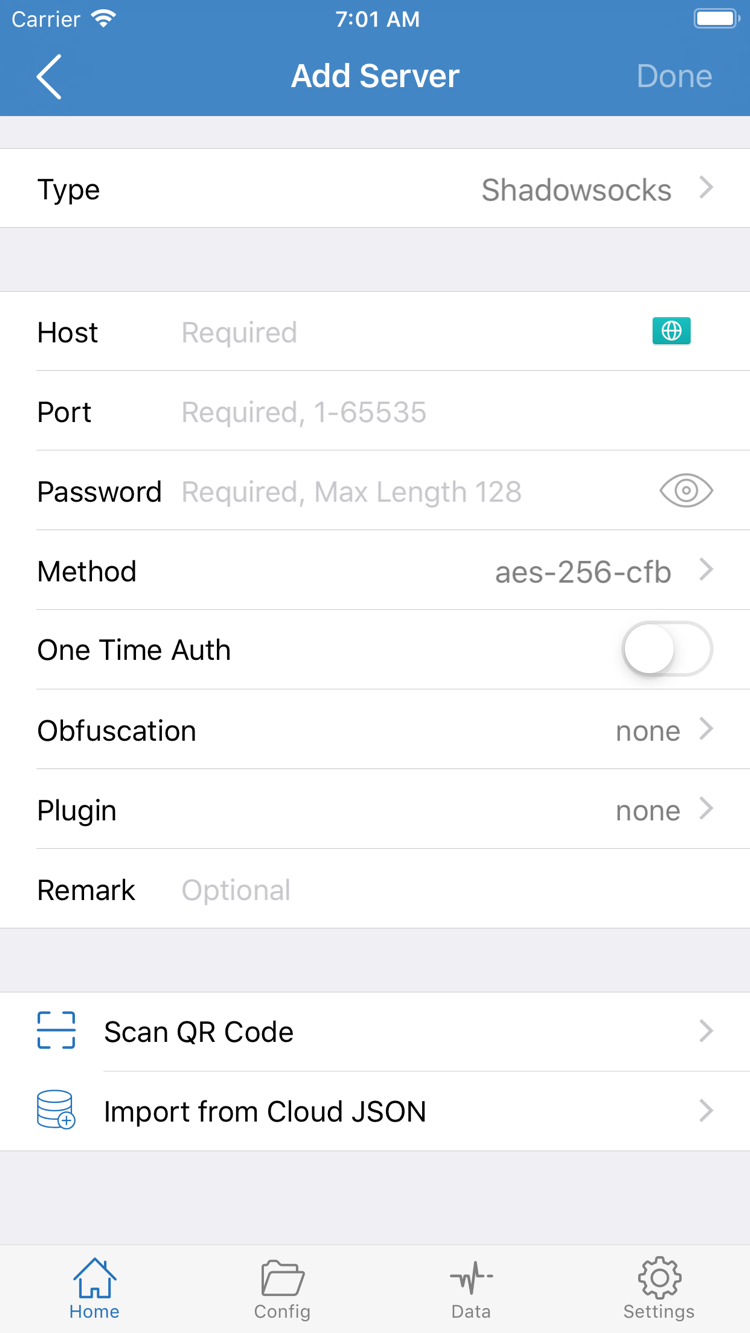
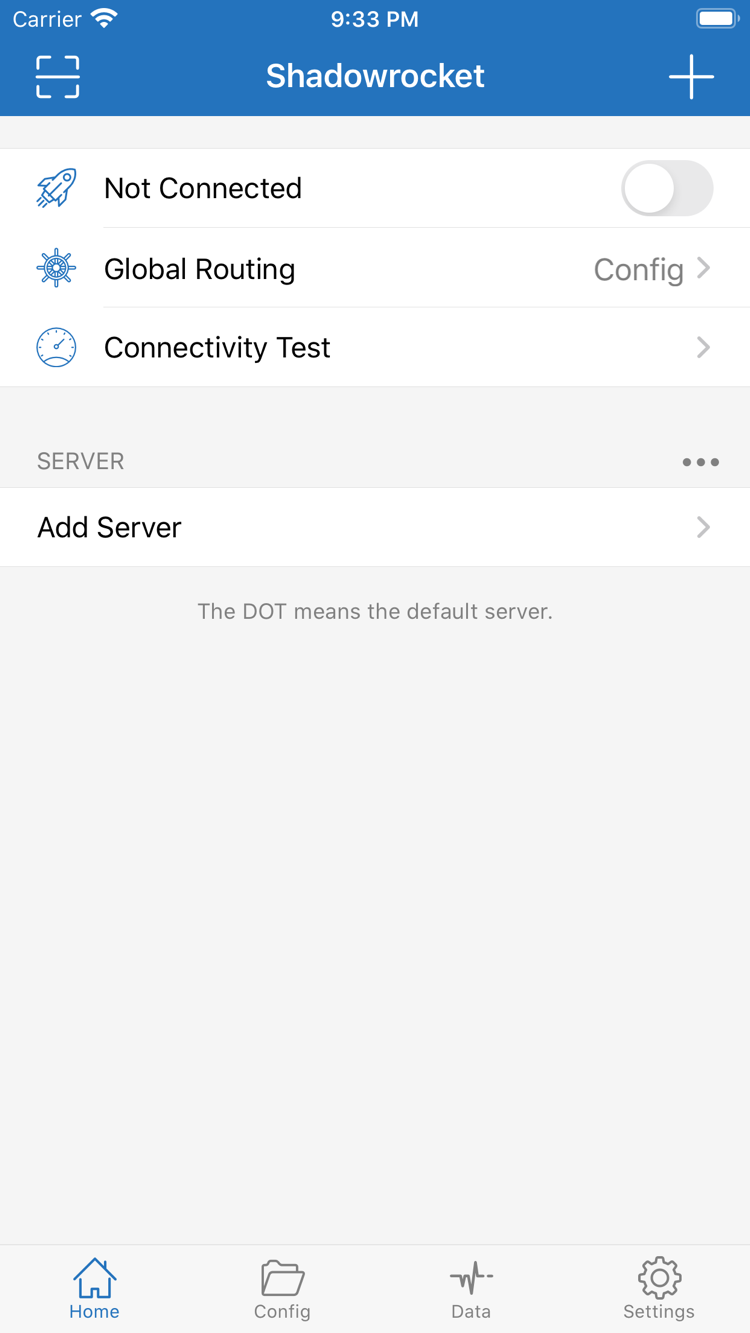
Open Home in Shadowrocket, find Add Server under SERVER, and open it. Tap Type, choose the protocol specified in your details, and fill in the fields that appear. For example, with Shadowsocks, check Host, Port, Password, and Method. Host is the server's domain or address; Port is the connection port. Password and Method must match your existing details. Don't guess based on the field labels or paste an entire share link into Host.
Fields vary by Type. For VLESS, VMess, Trojan, and other types, verify the corresponding authentication details and any transport or TLS settings specified in your information. If you don't have a source for a field's value, ask the original provider rather than entering a guess just to save. When finished, use the page's save action to return to Home. Confirm that the new entry appears in the list, then select it. Saving confirms that the details were entered; it doesn't mean the server can connect.
Import an Existing Subscription with Subscribe
If you already have a subscription link, open Add Server and select Subscribe under Type. Paste the full link into URL and, if useful, add a note to help identify it. Check both ends of the link when pasting to avoid including explanatory text, spaces, or line breaks. Enter your existing subscription URL here—not a regular webpage address or an individual server's Host. Save and return to Home, then wait for the subscription to load and check for the expected group and entries.
If the subscription name appears but there are no selectable entries, first check that the update has finished. Then confirm the link is still valid and that your network can reach it. Updating a subscription retrieves the server list; it does not update rule files in Config. To refresh the list later, use the update action for that subscription. Keep manually added entries distinct from subscription entries so you don't edit the wrong one.
Use Scan QR Code
On the Add Server page, select Scan QR Code and grant camera access when prompted by the system. Scan the QR code for a configuration you already have. After it's recognized, check Type, Host, Port, and other details against your source before saving. QR codes may contain authentication details, so obscure the full code in screenshots or when asking for help. Import from Cloud JSON is a separate option; use it only if you have data in that format. It's not needed for a first connection.
You're ready to continue when Home shows a selectable server entry whose details match your source. Next, choose how to handle traffic, then connect. Don't repeatedly toggle the switch at the top if there are no entries to select.
02 · Global Routing: Choose a Mode
Return to Home and tap Global Routing to see the current mode. This controls how the client handles requests; it does not select a server protocol. The three modes are Config, Proxy, and Direct. Decide what you want to test, then choose the appropriate mode. Changing modes won't correct server details or change your subscription contents.
Config: Handle Requests According to the Active Configuration
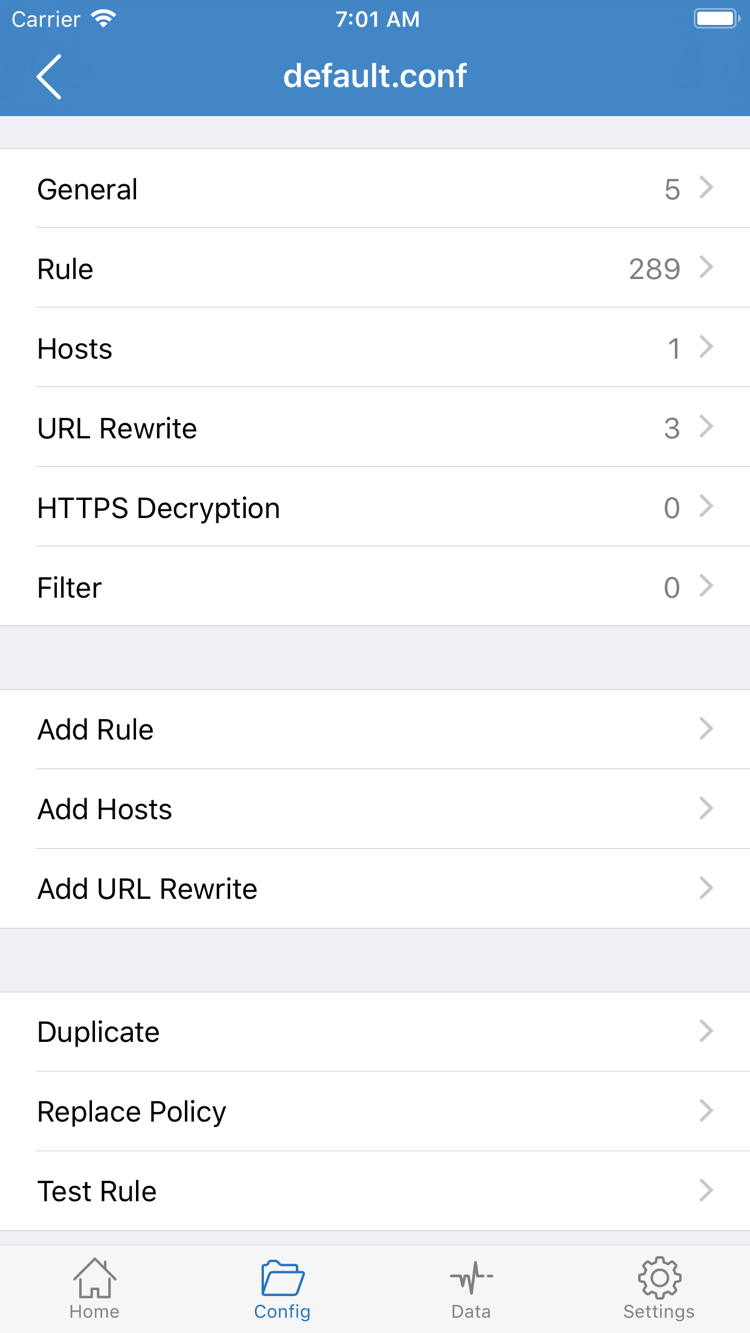
Choose Config for everyday routing based on rules. Then open Config and check which configuration file is actually active—not just whether a file with a particular name appears in the list. Configuration files can contain sections such as General, Rule, and Hosts. The screenshot also shows URL Rewrite and HTTPS Decryption. You don't need to enable each option the first time you use the app or add settings you don't understand just to connect.
In Rule, the order of rules affects which one matches. For example, DOMAIN-SUFFIX,example.com,PROXY matches a domain suffix and routes it through PROXY; DIRECT means the request is handled directly. If no earlier rule matches, check the configuration's final handling behavior. For an initial test, use an existing configuration from a clear source whose contents you understand. Use Add Rule only when you have a reason to adjust routing. For more about protocol fields and how rules differ, see the protocol reference.
Proxy: Test the Selected Proxy Route
With Proxy selected, requests handled by the client use a proxy. This can help determine whether an issue is related to routing rules in Config. After switching modes, confirm which server is selected on Home and run a new test. Proxy does not guarantee faster connections; your network, server availability, destination response, and protocol settings all affect the result.
Direct: Compare with a Direct Connection
With Direct selected, requests are handled directly rather than routed through the selected server as a proxy. This is useful for comparison, but it does not turn off the system VPN configuration. To stop the client connection, use the switch at the top of Home. After testing, return to your intended mode and note your selection so you don't mistake a temporary troubleshooting change for your everyday setting.
Before moving on, confirm two things: which Global Routing mode is selected, and, if it's Config, which configuration file is active. Once you've checked both, continue to system authorization and connection.
03 · Home: Approve and Start the Connection
Return to Home and check the selected entry under SERVER, then check Global Routing. Once both are correct, turn on the connection switch at the top. Not Connected in the official screenshot indicates the app wasn't connected when the screenshot was taken; it's a status label, not a setting to enter. Watch for status changes in the app, and avoid toggling the switch repeatedly in quick succession so you can tell which action produced the current result.
Add a VPN Configuration for the First Connection
The first time you connect, the system may ask to add a VPN configuration. Read the prompt and confirm that the request is from the Shadowrocket app you're using, then allow it and complete device authentication as prompted. This authorization lets the app handle connections through the system's network facilities. It doesn't create a server, fill in subscription details, or fix invalid settings. After authorization, return to the app and check whether the connection is established. If it isn't, check the status before trying once more.
If you previously canceled the prompt, return to the app and start the connection again to see if the system asks for confirmation. If the corresponding system configuration was deleted, follow the app and system prompts to set it up again. A VPN entry in system settings alone doesn't mean the connection succeeded: the configuration exists, the connection switch is on, and requests to your destinations work are three separate things to verify.
Keep Your Settings Unchanged After Connecting
Once the app shows a connection, don't enable more options right away. Keep the server, Global Routing mode, and configuration file unchanged, then move on to the next step to verify access. That gives you a known set of settings to troubleshoot if something goes wrong. Lists and detail views may appear in different places on iPad, but the order stays the same: select an entry, confirm the mode, then connect.
If the switch turns off immediately or stays in the connecting state for a long time, go to Settings and Troubleshooting to check system authorization and the effect of other connections. Don't keep adding duplicate entries. Once connected, run Connectivity Test and verify access in a browser.
04 · Connectivity Test: Verify the Connection
Return to Home and run Connectivity Test. Check the result for the selected entry. Results depend on Test Method in Settings, and different methods check different parts of the connection. A response time usually means only that the test received a response; it doesn't prove that every website, app, or type of traffic will work. Likewise, a timeout alone doesn't identify an incorrect password. Check actual access as well.
Next, open a browser, visit a familiar site you can check, and reload it. Use a fresh request rather than relying on a cached page. Then test a second, unrelated destination for comparison. If only one site fails, consider an issue with that destination, its rule, or name resolution. If several destinations fail, check the server, mode, and basic network. Don't change the server and configuration at the same time during testing, or the results will be hard to compare.
If you're using Config, check the available connection logs for the destination domain and the matching rule, policy, or handling result. A request expected to use DIRECT not going through a proxy isn't necessarily a problem. If a request expected to use PROXY is handled another way, check the active Config and rule order. The available log locations and fields may vary; don't judge routing based only on a VPN indicator in system settings.
Consider noting the server label, mode, and configuration file used for this test, but don't record or share full authentication details. To test another server, switch only the server first and repeat the same access checks. For help interpreting results, see Troubleshooting. A latency test, DNS lookup, and successful page load are different measures.
05 · Settings: Troubleshooting
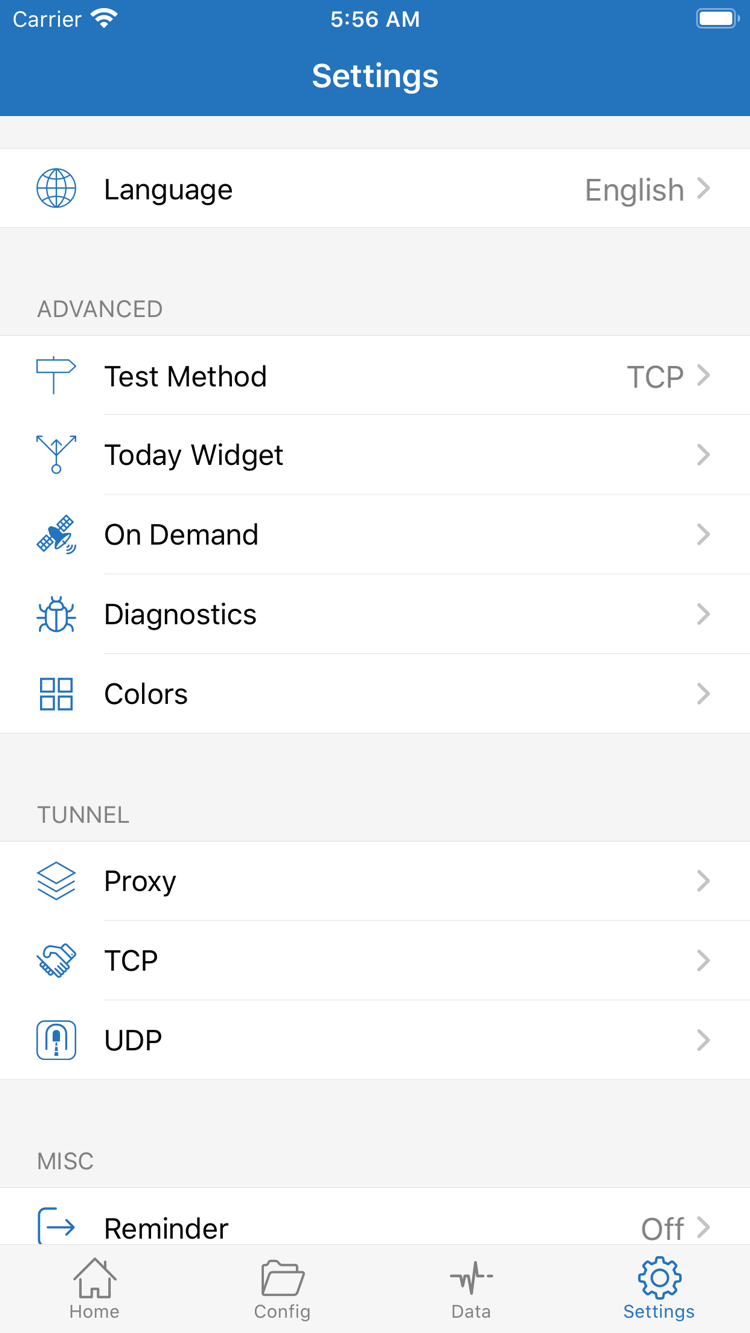
When something fails, narrow it down in the order below. Change only one thing at a time, repeat the same destination test, and note the result. Settings includes Test Method, On Demand, Diagnostics, Proxy, TCP, UDP, and other options, but their presence doesn't mean they all need adjustment. For a first connection, check the basics before considering advanced settings.
First, Separate Network Issues from Configuration Issues
- Basic network: Turn off the app connection and check whether your current Wi-Fi or cellular network can reach a page that normally works. If the network requires a sign-in first, complete that step before reconnecting.
- Imported details: Confirm that Home shows an actual server entry. A failed subscription update and a failed server connection happen at different stages. Resolve issues retrieving the list before testing an entry in it.
- Settings and selection: Check Type, Host, Port, authentication details, and any other fields required by your source. Also confirm that you're testing the entry you just checked.
- Mode and configuration: Check Global Routing. If you're using Config, verify the active configuration file. If needed, temporarily switch to Proxy for comparison, then restore your original mode after testing.
- System connection: Check that authorization is complete, the app still shows a connection, and no other VPN connection is affecting the current session. Stop any conflicting connection, then test again.
The Test Responds, but Web Pages Won't Load
Try a second, unrelated destination, then check whether the problem affects only one domain. Possible causes include DNS resolution, rule matching, the destination's response, or differences between the test method and the actual request. Don't assume every issue is DNS, and don't replace all DNS settings at once. Check the relevant settings and logs in the active Config, make one informed change, and test again. For a deeper investigation, see rule routing and troubleshooting.
On Demand: Configure After the Connection Is Stable
On Demand triggers connection behavior based on configured conditions; it is different from manually turning on the switch on Home. For your first setup, complete a manual connection and verify access before reviewing the On Demand conditions in Settings. If the connection starts again after you disconnect manually, check these settings rather than repeatedly deleting servers. After changing them, check what happens both when the conditions are met and when they aren't.
Use Diagnostics and Protect Your Connection Details
For further troubleshooting, check the available options under Diagnostics in Settings. When reporting a problem, include what happened, your network type, the selected mode, and whether only certain destinations fail. This is more useful than simply saying it doesn't work. Before sharing screenshots or logs, remove full subscription links, authentication details, QR codes, and other personal information. Don't share your entire configuration file to get help.
If a change makes things worse, restore the last set of settings you verified, then retry one change at a time. Once the connection works, you can stop here or read the protocol reference and settings guide as needed. This tutorial aims to establish a clear, repeatable workflow—not to change every option on your first try.